
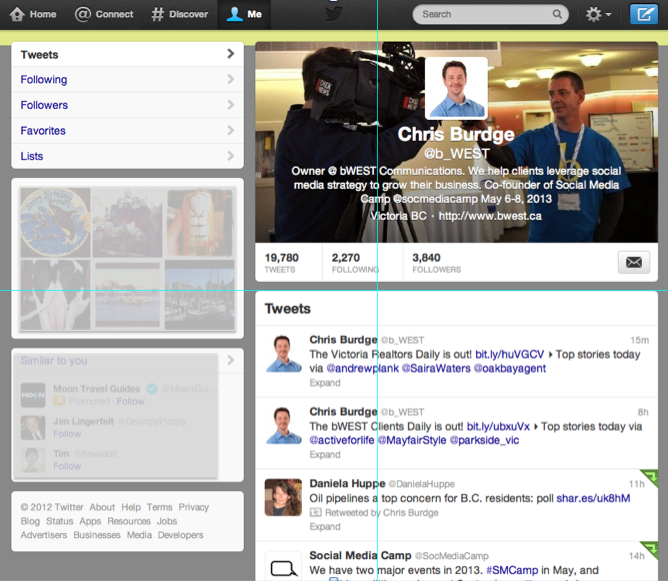
Have you seen the new Twitter “Header Image”? Cool eh!
Nice to see Twitter is keeping up with the Zuckerberg’s and Googlers. All the cool kids are getting them. Here’s ours.

Here’s how to get yours:
- Login to your Twitter account
- Click on the Gear icon at the top-right corner (1)
- Click on “Settings” in the drop down menu
- Click Design (2), in the left nav bar
- Click on the “Change Header” button (3)
- Upload a large image with a horizontal layout – Twitter will let you resize it
- Click okay and you’re done!
- Click the “Me” link at the top of the page to see your new header image.

You may want to use the same image you are using on your Facebook timeline or Google+ if you have one. Please page this message on so others can take advantage of it.
Want more of the latest tips and tricks on Twitter and other social media tools? We have 1-Day Workshops coming up in: